A new feature in the Gradebook allows teachers to leave feedback comments for assignments.
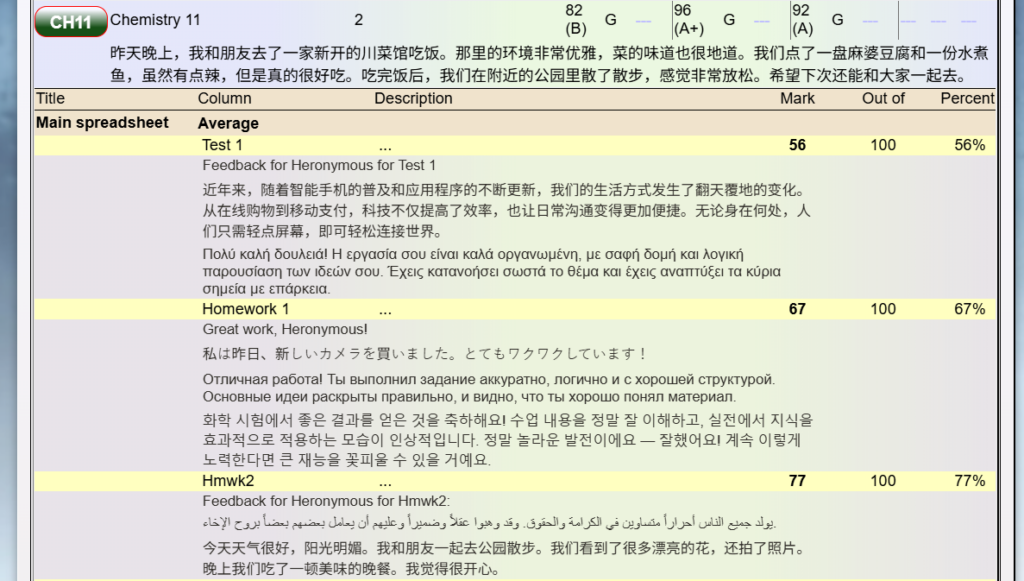
Students (and parents) can see feedback comments left by teachers for any published assignments.
To enable this function, the administrator should sign into WebTess and go to Security, Setup teachers and click the Options tab.
Under the options, check the setting to “Allow teachers to give feedback for gradebook data”.
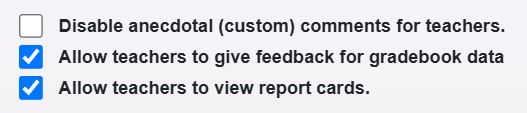
Then click Save.
When teachers go into Grades by class, then select a class, they will see the students in the class, and will see the feedback button between the Average column and the gradebook columns:
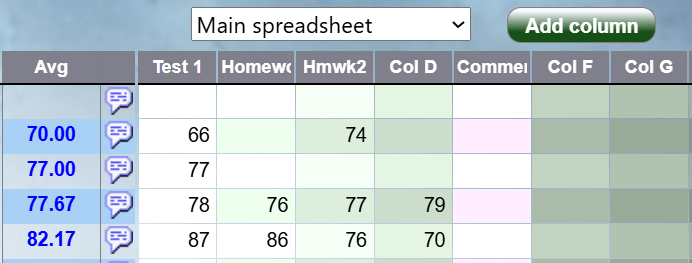
To enter feedback for any assignment, first click on the assignment column, then click the feedback button

When you click the feedback button, you can enter in a comment which will be linked to the assignment for the student. You can use the left/right buttons to switch between gradebook columns, and use the up/down buttons to switch between students in the class.
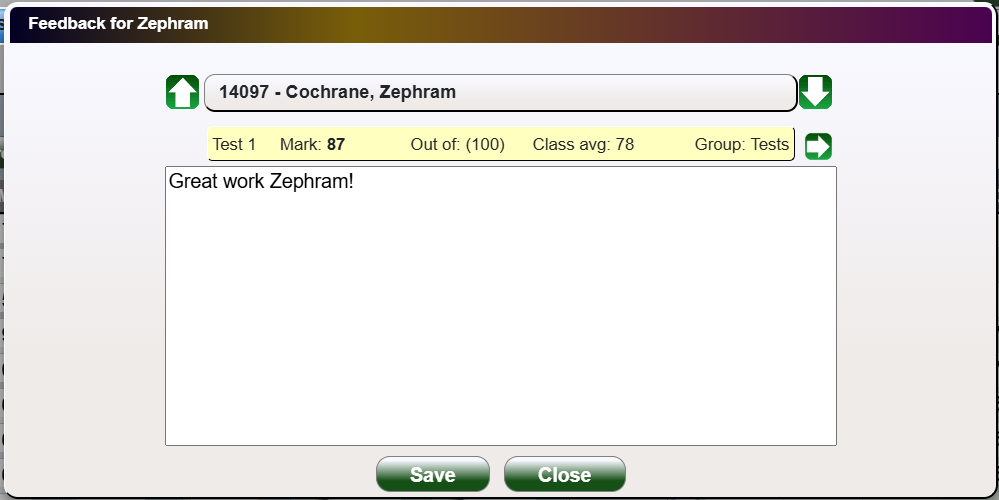
You can enter feedback for any assignment or column of marks in your gradebook spreadsheet. But the comments will only be seen by students (and parents) when you publish the columns.
To publish columns, go to the Gradebook menu, choose Spreadsheets, Edit this spreadsheet
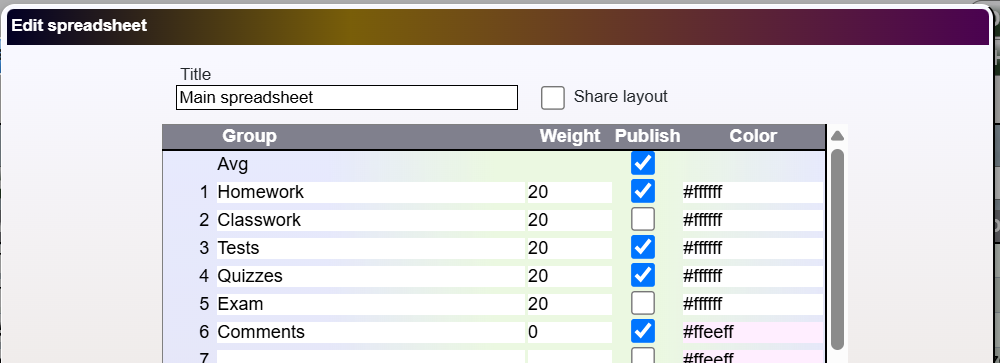
Then check the Publish checkbox for any items you want to be seen by students and parents.
When a student or parent signs into WebTess, they can click on Grades, then clicking the class to view the assignments and feedback